Skip to product information
1 of 6

Lonten Tech

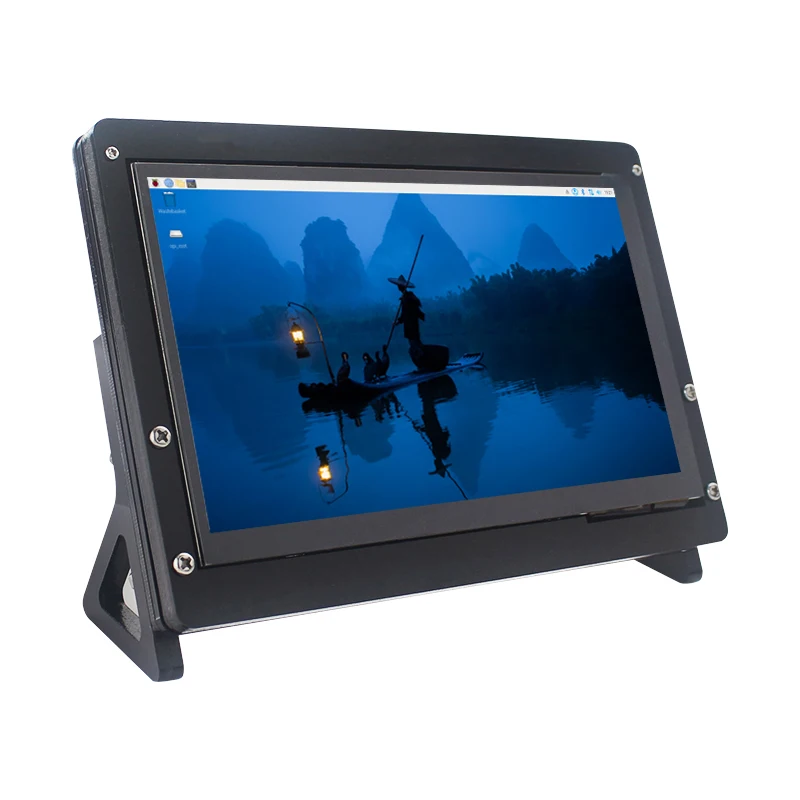
Caturda 7 Inch Touch Screen 1024*600 IPS Portable Display Raspberry Pi 5 4B 3B+ 3B Zero -compatible Secondary Monitor PC

Caturda 7 Inch Touch Screen 1024*600 IPS Portable Display Raspberry Pi 5 4B 3B+ 3B Zero -compatible Secondary Monitor PC

Regular price $46.54 USD
Regular price $46.54 USD Sale price $46.54 USD
Sale Sold out
型号
颜色

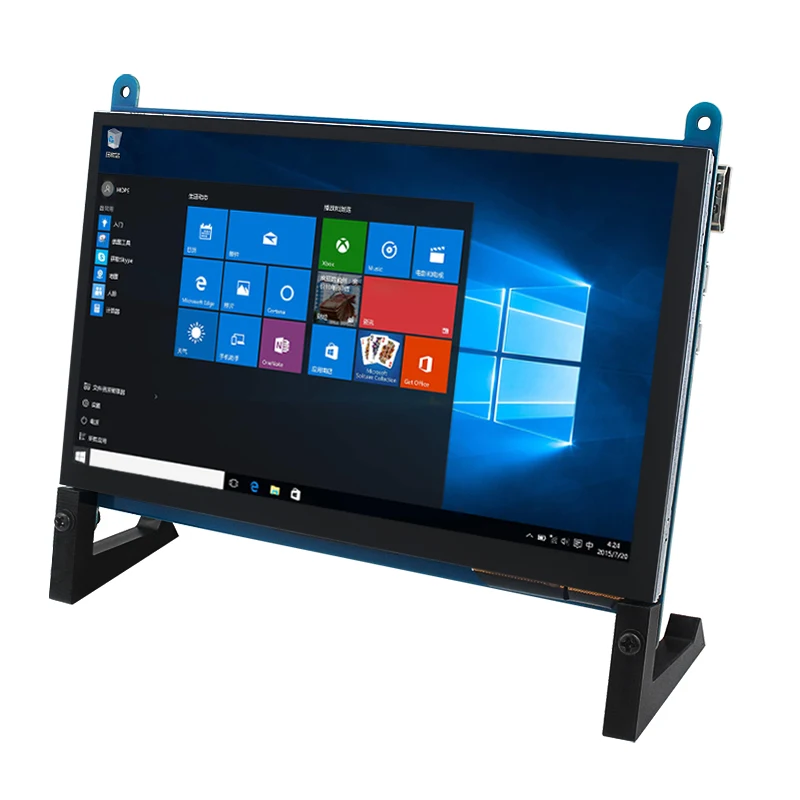
7 Inch Touch Screen 1024*600 IPS Portable Display for Raspberry Pi 5 4B 3B+ 3B Zero HDMI-compatible Scecondary Monitor for PC
 
 
Feature:
1. Resolution: 1024*600
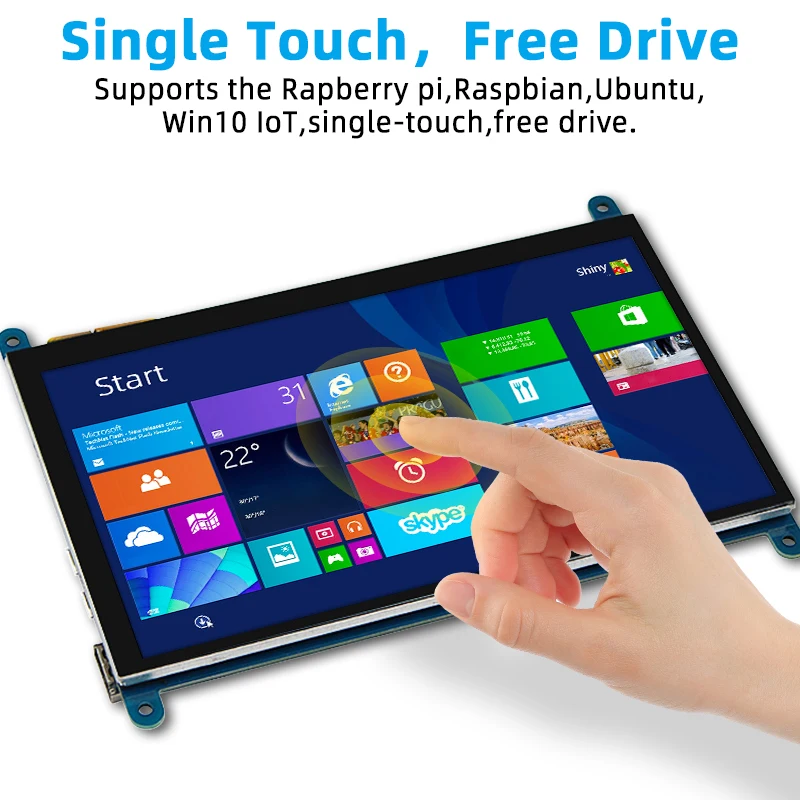
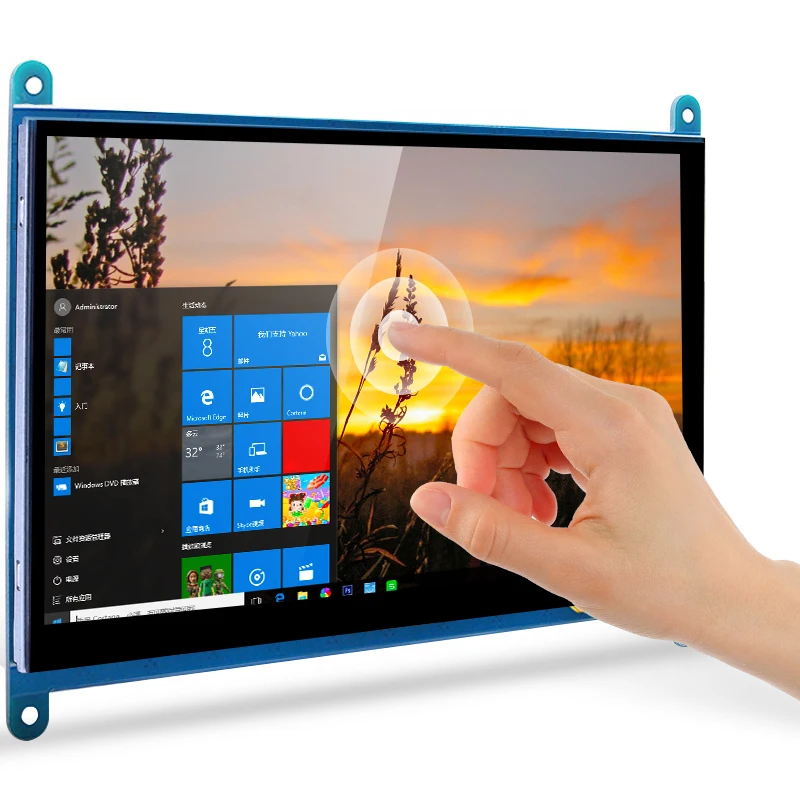
2. USB interface capacitive touch , more convenient
3. Support the backlight control, saves the electricity
4. Support the Raspberry Pi, provide Raspbian , Ubuntu , Win 10 system image in the CD
5. General HDMI-compatible display , can be used as a computer monitor ( touch function cannot be used )
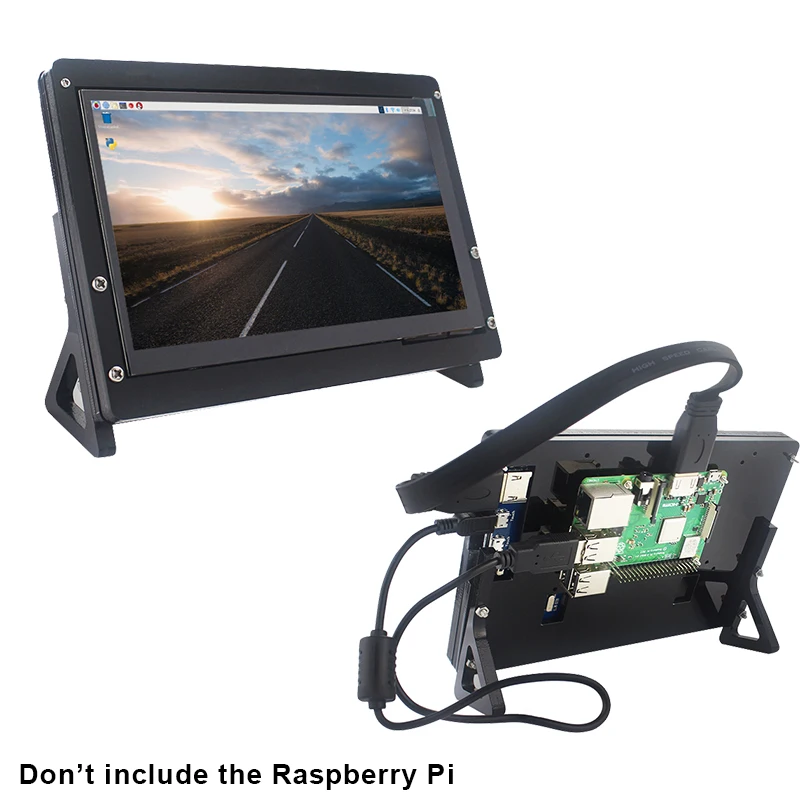
6. HDMI-compatible interface is used to display and USB interface is used to touch
7. This 7 inch touch screen module is designed especially for Raspberry Pi 4B / 3B+ / 3B, support the portable power, convenient for DIY.
 
Specification:
Size: 7 inch
Resolution: 1024*600 (dots)
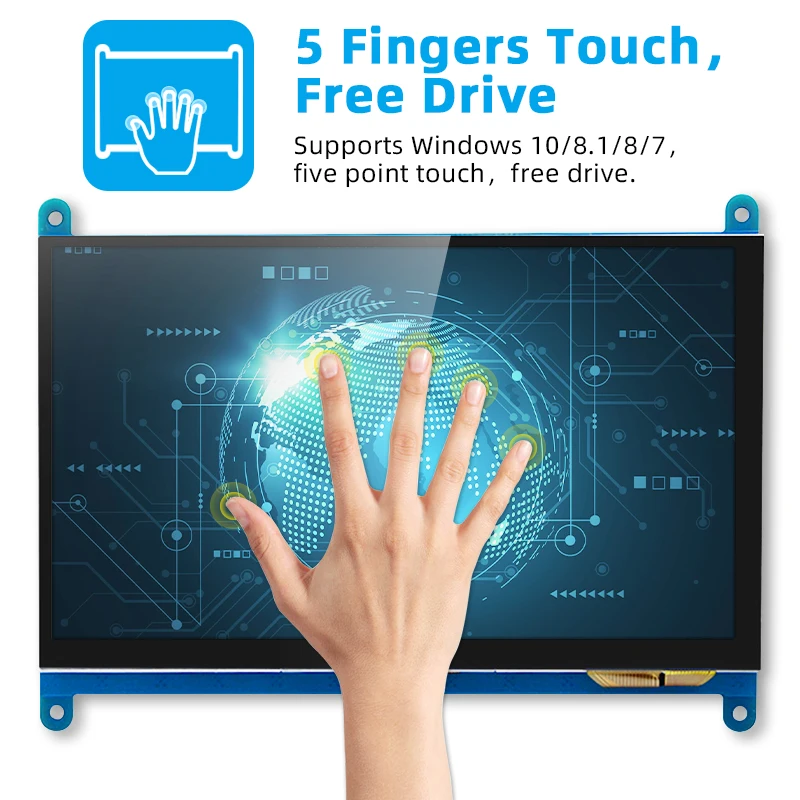
Touch: five-point capacitive touch
Product Size: 164.9*124.27 (mm)
Rough Weight(Package containing): 405 (g)
Compatible With: Raspberry Pi 5/4B / 3B+ / 3B
Power Dissipation:  0.62A*5V
 
Interfaces:
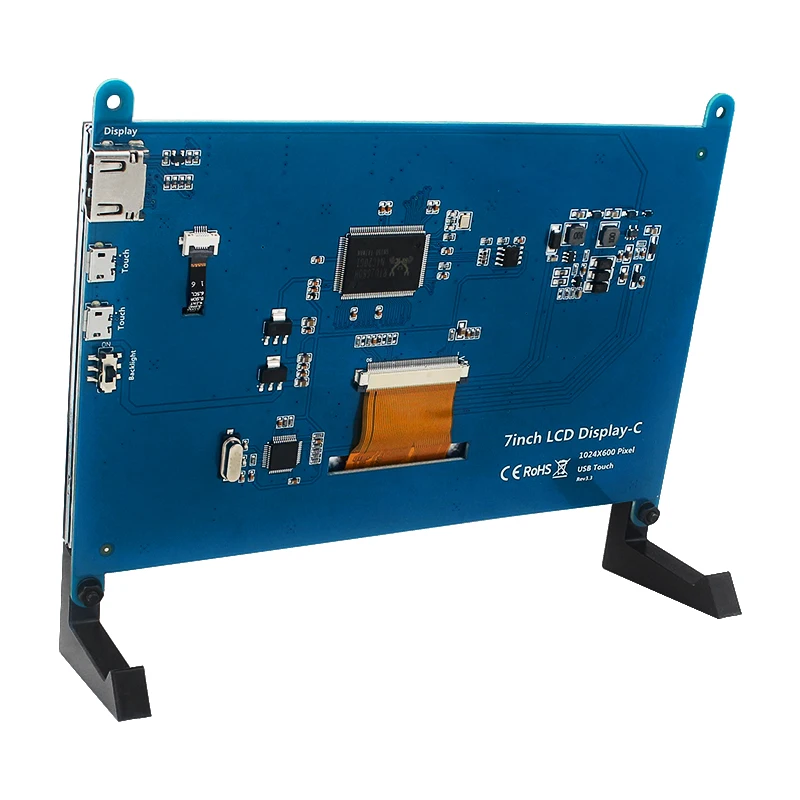
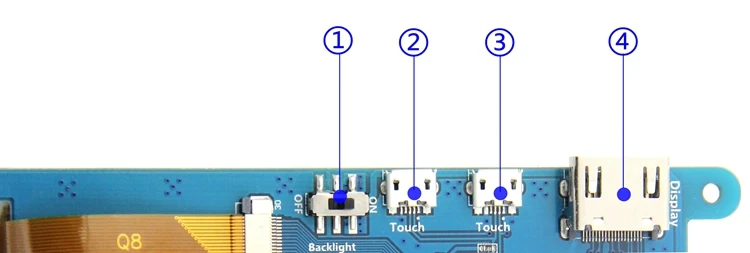
1Backlight Power switch: Controls the backlight turned on and off to save power.
2&3 USB Touch / power supply connector: For power supply and touch output, the functions of the both are the same, can just use one of them.
4 HDMI-compatible interface: For connecting motherboard and LCD monitor to HDMI-compatible transmission.
 
About the system image :
1. Use the images for this touchscreen in the CD directly.
2. Configure  the raspbian system :
(1). Install the raspbian system to your sd card , open the sd card on your computer .
(2). Open the config.txt file in the root directory of sd card   , add the following code at the end of the file, save it and safely eject the sd card .
 
How to use:
//www.lcdwiki.com/7inch_HDMI_Display-C


Use with Holer
 
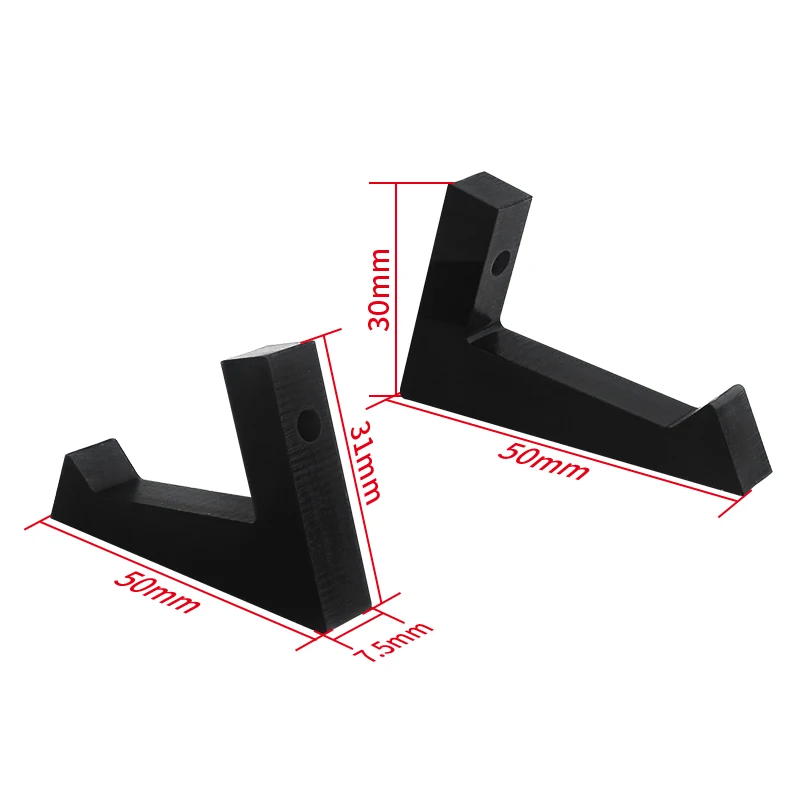
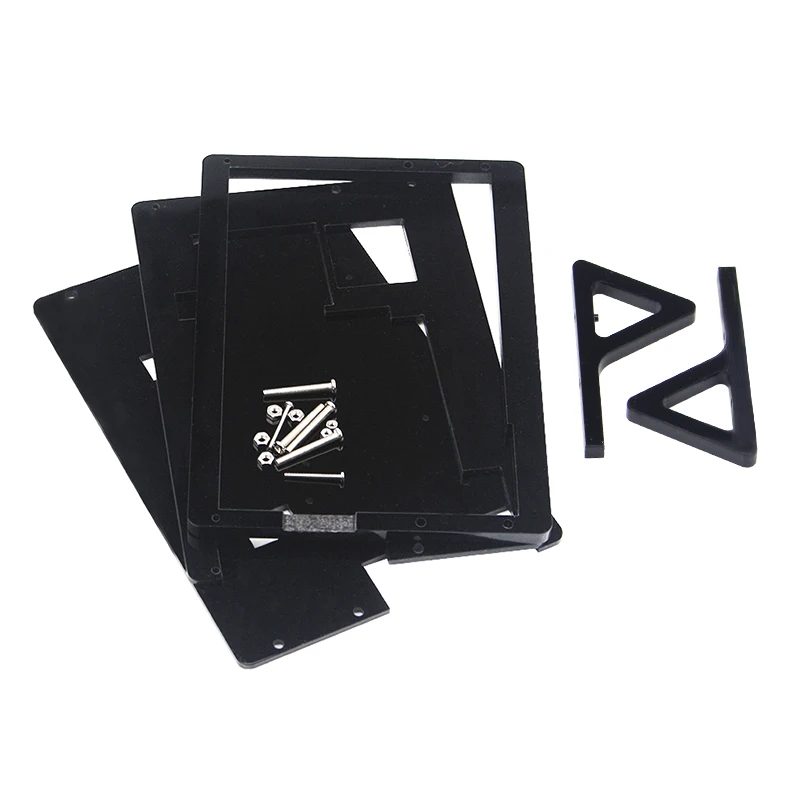
Use with Case
 

FAQ
1.Question:
Why the LCD doesn't work with my Raspbian system ?

Answer:
To use the LCD with the Raspberry Pi official system , you need to istall the driver to the system at first.But for the first testing for the LCD, you had better use the system image we provided directly

2.Quesion:
Why the LCD still not work with the system image we provided ?

Answer:
Please make sure the hardware connection is correct and connects fine.
Make sure you install the system image to SD card correctly.
The PWR will keep on and the ACT will keep blinking when the Raspberry Pi starts up successfully, in case both of the two LEDs keep on, it is possible that the system image was installed incorrectly or the SD card was in bad contact.

3.Question:
Which power supply should I use?

Answer:
We recommended to use a stand-alone from 5V/2A to 5V 3A power adapter , because the USB port of PC might not supply enough and steady power for supporting the Raspberry Pi and LCD .


View full details